
Download ElvUI from a traceable source
The download button points to the verified v15.24 tag in the public ElvUI repository. The separate Tukui link opens the official packaged distribution page. Avoid repackaged executables: ElvUI is distributed as an addon archive, not a Windows installer.
- Current verified release: ElvUI 15.24.
- Current package directories: ElvUI, ElvUI_Libraries and ElvUI_Options.
- Source repository: tukui-org/ElvUI on GitHub.
Install ElvUI on Windows
- 1
Close WoW
Exit the game completely so files are not locked or cached.
- 2
Open your WoW install location
In Battle.net, use the cog menu for the selected game version and choose Show in Explorer.
- 3
Open the correct client folder
Choose
_retail_,_classic_or_classic_era_, then openInterface/AddOns. - 4
Extract the addon folders
Copy ElvUI, ElvUI_Libraries and ElvUI_Options directly into AddOns.
- 5
Enable and configure
Launch WoW, open AddOns at character selection and enable all three entries.
Install ElvUI on a MacBook or iMac
ElvUI's Lua addon files work on macOS. In Battle.net, open the installation location for the selected WoW client, then follow the same client-folder structure. Finder may hide the full path, so use Battle.net's Show in Finder option instead of guessing.
- Do not open or run a Windows executable.
- Extract the ZIP with Finder or a standard archive utility.
- Copy the same three folders into Interface/AddOns.
- Make sure macOS did not create an extra nested folder during extraction.
Verify the folder structure
A correct install lets WoW find a TOC file directly under each addon directory. If the AddOns screen does not list ElvUI, remove any outer folder such as ElvUI-15.24 or ElvUI-v15.24.
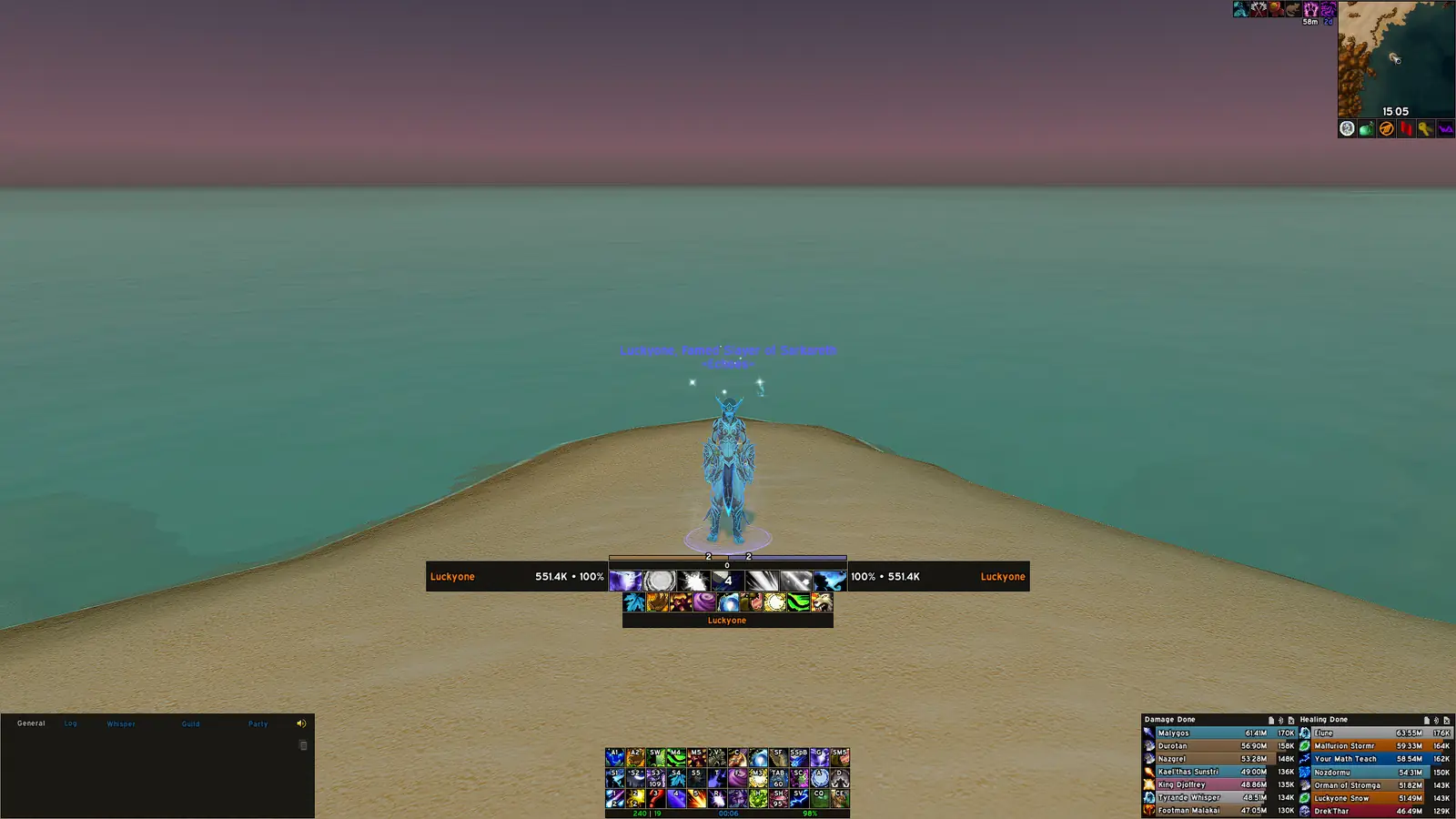
Complete the in-game setup
On first login, ElvUI presents a setup process for CVars, chat, theme, resolution and layout. Complete the baseline setup before importing a third-party profile. Type /ec to reopen ElvUI configuration later.
How to download ElvUI from a verifiable source
Learning how to download ElvUI begins with recognizing the real distribution format. ElvUI is a World of Warcraft addon delivered as a ZIP archive, not a Windows installer, macOS application or account-based launcher. Tukui provides the current packaged distribution, and tukui-org/ElvUI is the public source repository. This page's direct current link uses the verified v15.24 Git tag checked on July 16, 2026, while the Tukui page remains the place to confirm whether a newer release has replaced it.
Avoid executable files, download managers and mirrors that do not identify their source. A correct archive contains the project files and the three addon directories ElvUI, ElvUI_Libraries and ElvUI_Options. A version label alone is insufficient evidence because WoW patch numbers and ElvUI release numbers are frequently confused in searches. Check the release number, update date, public tag and supported interface list before installing.
If Tukui reports a release newer than the one shown here, use the newer supported package. The static tag is provided as a stable verified direct archive, not as a claim that 15.24 remains permanently current. Keeping the verification date visible is part of the download answer.
How to download ElvUI for the correct WoW client
Before copying files, select the World of Warcraft version in Battle.net. Retail, progression Classic and Classic Era use separate client directories. On Windows, choose Show in Explorer from the selected client's cog menu. On macOS, use Show in Finder. This launcher-based path is more reliable than searching the drive manually, especially when an old installation or second drive contains another World of Warcraft folder.
Retail normally uses _retail_/Interface/AddOns, progression Classic commonly uses _classic_/Interface/AddOns, and Classic Era uses _classic_era_/Interface/AddOns. Anniversary branches should be opened from their active Battle.net entry rather than inferred from a neighboring directory. The same current package can support several branches, but each branch loads only the AddOns directory under its own client folder.
Players asking how to download ElvUI for a private server need the server's exact client and interface requirements. An expansion name such as Vanilla, Wrath or Mists of Pandaria is not precise enough. Current live ElvUI may not support historical 1.12, 3.3.5a or 5.4 clients. Use a server-maintained compatibility source or a verified historical tag that matches the documented client.
Extract and verify all ElvUI addon folders
Open the ZIP after it finishes downloading. A GitHub tag archive creates an outer folder named for the repository and release, such as ElvUI-15.24. Open that wrapper and locate ElvUI, ElvUI_Libraries and ElvUI_Options. Copy those three directories directly into the selected client's Interface/AddOns directory. Do not copy the outer wrapper itself.
Verify directory depth before launching WoW. The game needs a path such as AddOns/ElvUI/ElvUI_Mainline.toc or the equivalent Classic TOC. A path such as AddOns/ElvUI-15.24/ElvUI/... is one level too deep. The three core folders should be siblings. Do not rename them, combine them or move libraries inside the main directory because WoW treats each as a separate addon module.
If an older ElvUI version is already installed, close WoW, back up WTF and remove the three old core directories. Copy the new folders cleanly rather than merging. A clean replacement removes obsolete files while the separate WTF directory preserves profiles. Keep the downloaded archive until the new installation has loaded successfully.
Confirm that the ElvUI installation works
Launch the same WoW client whose directory was edited. At character selection, open AddOns and look for ElvUI, ElvUI Libraries and ElvUI Options. Enable all three. If they do not appear, return to the path and wrapper checks. If they appear as out of date, compare the client interface with the release metadata instead of immediately overriding the warning. An interface mismatch can indicate that the wrong branch or release was installed.
Enter the world and complete the ElvUI setup. It configures baseline console variables, chat, scale, theme and role layout. Type /ec to open settings after setup. Test action bars, unit frames, chat, bags, maps and nameplates before importing a profile. This clean baseline confirms that the installation works independently from community layouts and optional plugins.
When errors appear, disable third-party ElvUI extensions and reload. Confirm that all three core folders came from the same archive. On macOS, also check that the archive utility did not create another wrapper directory. Knowing how to download ElvUI is only half the process; successful installation requires the correct client, exact folder depth and a clean base test.
Keep a short download record with the archive name, source tag, verification date and target client. That download record makes a future reinstall reproducible and helps distinguish a real package change from a profile or plugin change.
ElvUI installation FAQ
Where do I put ElvUI?
Place ElvUI, ElvUI_Libraries and ElvUI_Options inside the Interface/AddOns folder of the WoW client you launch.
Can I use ElvUI on MacBook?
Yes. ElvUI is a Lua addon and works on supported WoW clients on macOS.
Why does ElvUI not appear in AddOns?
The usual causes are the wrong client folder or an extra wrapper directory between AddOns and the three ElvUI folders.
How do I launch the ElvUI setup?
The setup opens on first login. Type /ec to open the configuration panel later.